先选对模式
| 模式 | 可以做什么 | 限制 |
|---|---|---|
ui / 默认 run |
标准 UI、布局、主题与安装目录;工作区脚本默认启动 PXADB | 源码 manifest 卡片本身不等于已安装的 Guest;运行已安装包由 product 路径接管 |
product |
验签并运行真实 WASM/AOT 应用 | 不模拟芯片和物理外设 |
service start |
常驻 PXADB、验签安装与持久目录 | 不单独创建可显示画面的窗口 |
UI 预览
tools/simulator.sh ui --profile pai-touch
tools/simulator.sh ui --profile sensecap-watcher
--app-root 读取源码 manifest 生成启动器卡片,单有卡片并不表示 Guest 已构建或安装。当前工作区脚本在运行时默认自动启动 PXADB 服务,并将已安装包目录和 product runner 接入标准 UI;安装正确桌面包后可从该工作流运行真实 App。
底层独立标准 UI 程序与工作区封装的能力不同,不能笼统理解为“ui 模式没有 PXADB”。需要只查看系统 UI、关闭自动启动服务时可设置 PXA_SIMULATOR_AUTOSTART_PXADB=0;这不会停止已经显式启动的服务。
模拟器画面
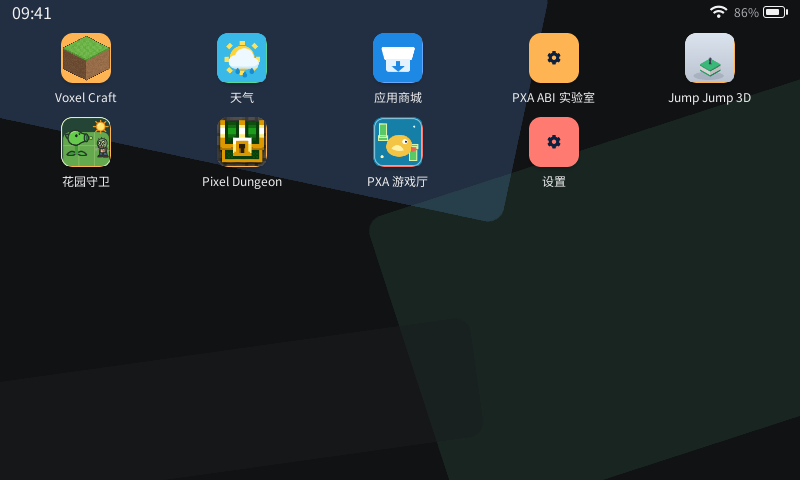
800×480 横屏模拟器的启动器。时间和电量为模拟值,图标来自本地应用目录。 点击图片查看原图。
圆角屏、圆屏和竖屏的完整对照见多设备 Profile 教程。
选择不同设备屏幕
tools/simulator.sh ui --profile generic             # 390×844 竖屏
tools/simulator.sh ui --profile pai-touch           # 296×240 圆角横屏
tools/simulator.sh ui --profile sensecap-watcher    # 412×412 圆屏
tools/simulator.sh ui --profile esp32s31-korvo-1     # 800×480 横屏
直接运行模拟器默认 generic;tools/dev.sh sim 默认使用与 --board 同名的 Profile。已登记 Hello 源码后,tools/dev.sh sim hello --profile sensecap-watcher --watch 就能以圆屏开发。
完整字段、自定义 240×240 圆屏、语言 / 主题矩阵和多实例隔离见 Profile 与多设备模拟。App 的本机源码路径配置见apps.toml 教程。
真实运行 App
tools/app.sh build hello --target simulator --source-root deps/pxa-system/apps/pxa
tools/simulator.sh product --profile pai-touch \
  --package local/app-output/pai-touch/pxa-hello \
  --publisher-key deps/pxa-system/apps/pxa/.dev-signing/publisher-public.der
这里指定开发夹具的公钥,因为示例使用对应私钥签名;自签名包要替换为自己的公钥,并满足运行器的信任配置。
持久安装与启动
tools/simulator.sh service start --profile pai-touch
pxadb devices
pxadb package install local/app-output/pai-touch/pxa-hello.pxa --simulator pai-touch
pxadb package list --simulator pai-touch
pxadb package run pxa-hello --simulator pai-touch
也可运行 tools/simulator.sh run --profile pai-touch 打开标准 UI。它会自动启动服务;自动启动的服务随最后一个相关窗口关闭而停止。显式 service start 启动的服务需自行停止:
tools/simulator.sh service status --profile pai-touch
tools/simulator.sh service stop --profile pai-touch
交互、截图与调试
pxadb screenshot simulator.png --simulator pai-touch
pxadb input tap 148 120 --simulator pai-touch
pxadb input swipe 40 120 250 120 --duration-ms 300 --simulator pai-touch
pxadb input key back --simulator pai-touch
tools/pxadb-gui.sh --simulator pai-touch
坐标为逻辑像素。Profile 决定尺寸、圆角、安全边距和外部背景;修改 Profile 适合测试显示语义,不应复制真实硬件驱动进去。
状态与隔离
持久数据在 local/simulator/<profile>/,默认使用当前用户的 Unix socket。多实例可用 --instance,客户端以 PROFILE@INSTANCE 选择。清理状态前保存需要保留的应用数据。
显式 TCP listener 使用 token 认证但不加密,只适合受信任开发网络。模拟器不能验证 DMA 时序、触控 IC、电源管理或真实音频性能,这些必须到真机调试中完成。
构建与 Host 性能诊断
只检查构建而暂不启动窗口可用 tools/simulator.sh ui build --profile pai-touch。调试 Host 原生代码时可设置 PXA_SIMULATOR_BUILD_TYPE=Debug;日常运行默认 Release。PXA_SIMULATOR_PERF=1 可输出桌面循环耗时信息,这反映主机侧行为,不代表真实 MCU 性能。
PXA_SIMULATOR_PERF=1 tools/simulator.sh ui --profile pai-touch
记录源码提交号、Profile 文件、App 制品和日志,再比较不同设备外形下的结果。完整迭代流程见日常开发与联调流程。